
ComfyUI Tiled Diffusion: High-Res Without the VRAM
Running SDXL at massive resolutions? Choking your 8GB card? Tiled diffusion in ComfyUI can help. It's a clever approach to generate images larger than your GPU's VRAM would normally allow. It does this by breaking the image into tiles, processing them individually, and then stitching them back together. This guide dives into the specifics of implementing tiled diffusion in ComfyUI for high-resolution image generation without running out of memory.
What is Tiled Diffusion?
Tiled diffusion involves splitting an image into smaller, manageable tiles processed independently and then reassembled. This technique drastically reduces VRAM requirements, enabling the generation of high-resolution images on hardware with limited memory. It's particularly useful for SDXL, which demands significant VRAM at higher resolutions.
The Weird Texture Problem
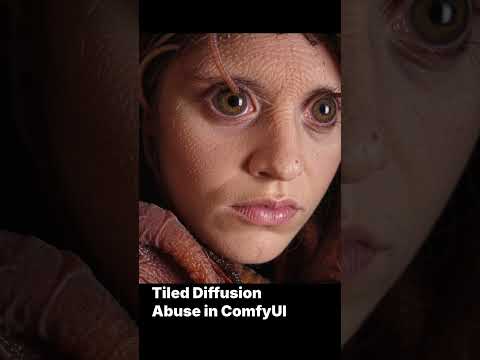
In the video, the initial experimentation with tiled diffusion led to an unexpected side effect: weird textures appearing at super high resolution [0:08]. It's a bit like a throwback to the early days of Disco Diffusion, where unexpected artifacts were common. This highlights a key point: tiled diffusion isn't a magic bullet. It requires careful tuning to avoid introducing unwanted artifacts.
Building the Tiled Diffusion Workflow
Let's break down how to construct a tiled diffusion workflow in ComfyUI. It's all about manipulating the image in chunks and then putting it back together seamlessly.
Core Components
- Image Input: Load the initial image you want to upscale or generate.
- Tile Generation: Split the image into tiles. This is the heart of the process.
- KSampler (Tiled): The KSampler node processes each tile individually. You'll need to configure this carefully.
- An earlier draft referred to unspecified X-platform testing without supplying a specific link. That unsupported statement is not presented here as evidence.
- Image Stitching: Reassemble the processed tiles back into a single, high-resolution image.
Node Graph Logic
The key is connecting these components in the right way.
- Load your base image using a
Load Imagenode. - Feed this into a custom tiling node (or a series of
Cropnodes if you're feeling masochistic) to split the image. - Each tile then goes through a standard image generation pipeline:
VAE Encode->KSampler->VAE Decode. - Important: Connect the SageAttentionPatch node output to the KSampler model input to save VRAM. Remember the trade-off: it saves VRAM but may introduce subtle texture artifacts at high CFG.
- Finally, use a custom stitching node (or more
Image Pastenodes) to reassemble the tiles.
Addressing Texture Artifacts
The initial tiled diffusion results might exhibit noticeable seams or texture inconsistencies between tiles. This is where fine-tuning is essential.
Overlap is Key
The most effective way to mitigate these artifacts is to introduce overlap between the tiles. When reassembling the image, the overlapping regions are blended, smoothing out any abrupt transitions. A common overlap setting is 64 pixels.
Experimentation is Critical
The optimal overlap value depends on the specific image, model, and settings you're using. Don't be afraid to experiment to find what works best.
My Recommended Stack
For a solid foundation, I reckon using the following:
ComfyUI: The core node-based interface. Its flexibility is unparalleled.
Promptus: This simplifies the prototyping process. Tools like Promptus simplify prototyping these tiled workflows.
Custom Nodes: Several custom nodes are available to streamline tiling and stitching.
Tiled VAE Decode: This is ESSENTIAL.
Sage Attention: A VRAM Savior
If you're still struggling with VRAM limitations, consider using Sage Attention. This is a memory-efficient alternative to standard attention mechanisms in the KSampler.
How it Works
Sage Attention reduces memory consumption by approximating the attention mechanism. This comes at a cost: it may introduce subtle artifacts, especially at higher CFG values. But for many use cases, the VRAM savings are worth the trade-off.
Implementation
You'll need to install a custom node that implements Sage Attention. Once installed, simply connect the SageAttentionPatch node output to the KSampler model input.
JSON Configuration Example (ComfyUI)
Here's a snippet of a ComfyUI workflow.json that demonstrates the core structure (note that this is a simplified example and may need adjustments based on your specific needs):
{
"nodes": [
{
"id": 1,
"type": "Load Image",
"inputs": {
"image": "path/to/your/image.png"
}
},
{
"id": 2,
"type": "Tile Image",
"inputs": {
"image": 1,
"tile_size": 512,
"overlap": 64
}
},
{
"id": 3,
"type": "KSampler",
"inputs": {
"model": "your_model",
"seed": 42,
"steps": 20,
"samplername": "eulera",
"cfg": 8
}
},
{
"id": 4,
"type": "VAE Decode",
"inputs": {
"samples": 3
}
},
{
"id": 5,
"type": "Stitch Image",
"inputs": {
"tiles": 4
}
},
{
  "id": 6,
  "type": "SageAttentionPatch",
  "inputs": {
    "model": "your_model"
  }
}
],
"links": [
{"source": {"node": 1, "port": "image"}, "destination": {"node": 2, "port": "image"}},
{"source": {"node": 2, "port": "tile"}, "destination": {"node": 3, "port": "latent_image"}},
{"source": {"node": 3, "port": "samples"}, "destination": {"node": 4, "port": "samples"}},
{"source": {"node": 4, "port": "image"}, "destination": {"node": 5, "port": "tile"}} ,
{"source": {"node": 6, "port": "MODEL"}, "destination": {"node": 3, "port": "model"}}
Technical Analysis
This JSON defines a basic tiled diffusion workflow. The Tile Image node splits the input image into tiles. Each tile is then processed by the KSampler and VAE Decode nodes. Finally, the Stitch Image node reassembles the tiles. The SageAttentionPatch node modifies the model used by the KSampler to reduce VRAM usage.
LTX-2 and Low-VRAM Tricks
For video generation, consider LTX-2 and its low-VRAM optimizations. Chunk feedforward to process video in 4-frame increments. Hunyuan low-VRAM deployment patterns (FP8 quantization + tiled temporal attention) can further reduce memory footprint. These techniques can be combined with tiled diffusion for truly massive video outputs.
Conclusion
Tiled diffusion in ComfyUI is a brilliant technique for overcoming VRAM limitations and generating high-resolution images on modest hardware. While it requires careful tuning to avoid artifacts, the results are worth the effort. Experiment with different overlap values, consider using Sage Attention, and explore LTX-2 tricks for video. Cheers!
Technical Analysis
Tiled diffusion cleverly circumvents VRAM limitations by processing images in smaller chunks. Overlap and blending techniques mitigate artifacts. Sage Attention offers further VRAM savings. These techniques, combined with tools like Promptus, empower creators to push the boundaries of image and video generation. Builders using Promptus can iterate offloading setups faster.
Code language: HTML
Technical FAQ
Q: I'm getting "CUDA out of memory" errors. What can I do?
A: The most common cause is exceeding your GPU's VRAM. Try the following:
Reduce the image resolution.
Enable tiled diffusion.
Use Sage Attention.
Lower the batch size.
Close other applications that are using your GPU.
Swap first 3 transformer blocks to CPU, keep rest on GPU
Q: What are the minimum hardware requirements for tiled diffusion?
Q: How do I install custom nodes in ComfyUI?
A: Navigate to the ComfyUI directory in your terminal. Run git clone [repository URL] to clone the node repository. Restart ComfyUI to load the new nodes.
Q: My images have noticeable seams between the tiles. How do I fix this?
A: Increase the overlap between the tiles. A value of 64 pixels is a good starting point.
Q: Sage Attention is introducing artifacts. What can I do?
A: Try lowering the CFG scale. Alternatively, disable Sage Attention and explore other VRAM optimization techniques.
More Readings
Continue Your Journey (Internal 42.uk Resources)
Understanding ComfyUI Workflows for Beginners
Advanced Image Generation Techniques
VRAM Optimization Strategies for RTX Cards
Building Production-Ready AI Pipelines
Mastering Stable Diffusion Parameters
Prompt Engineering Tips and Tricks
Created: 21 January 2026